
Inference Endpoints (dedicated) documentation
Quick Start
Quick Start
In this guide you’ll deploy a production ready AI model using Inference Endpoints in only a few minutes. Make sure you’ve been able to log in the Inference Endpoints UI with your Hugging Face account, and that you have a payment method set up. If not, it’s a quick add of valid payment method and credits in your billing settings - preferably with the automatic recharge enabled to ensure uninterrupted usage and the best possible experience.
Create your endpoint
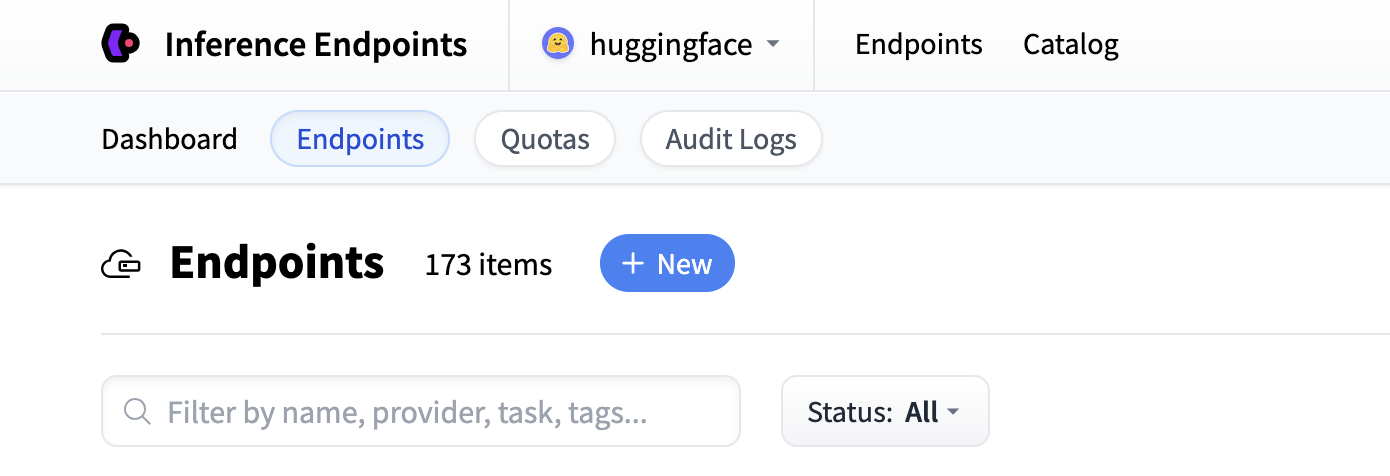
Start by navigating to the Inference Endpoints UI, and once you have logged in, click the Catalog button.
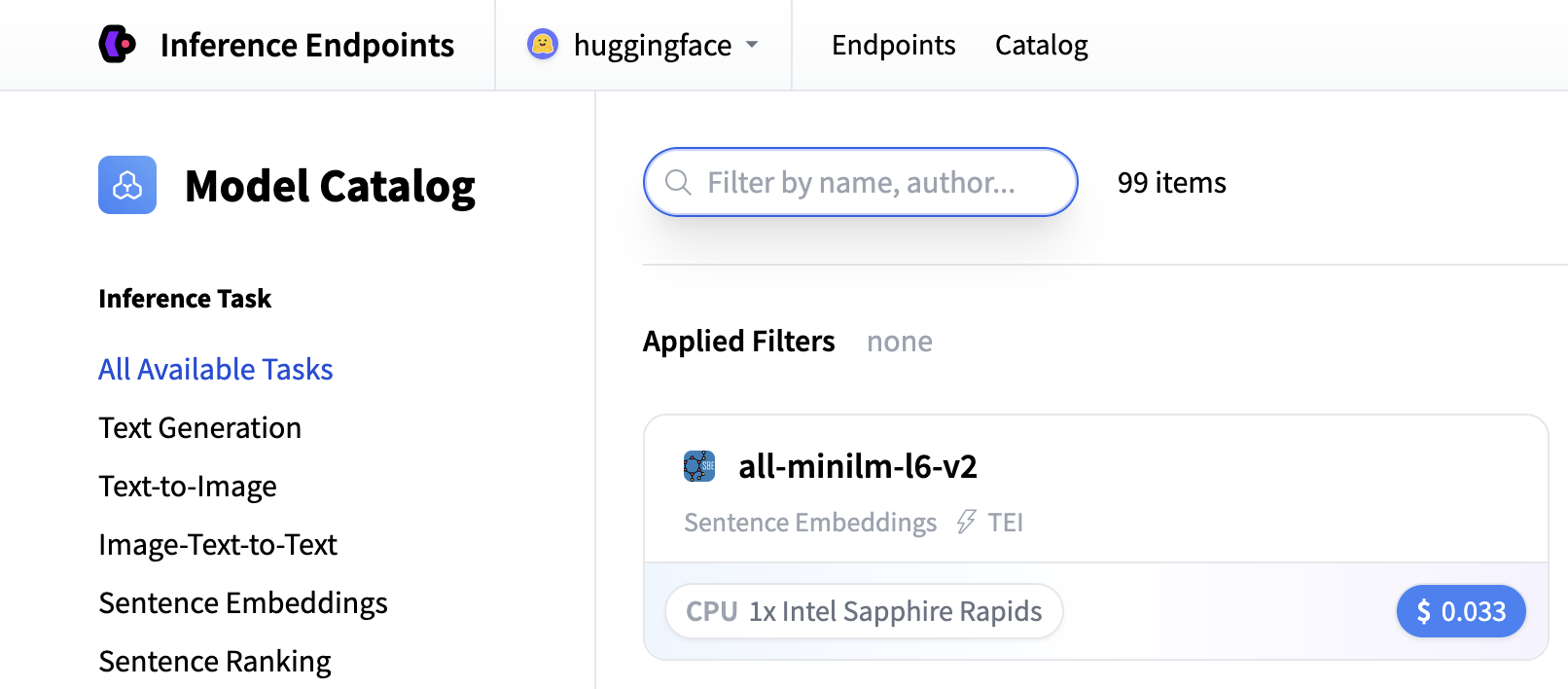
From there you’ll be directed to the catalog. The Model Catalog consists of popular models which have tuned configurations to work in one-click deploys. You can filter by name, task, hardware price, and much more.
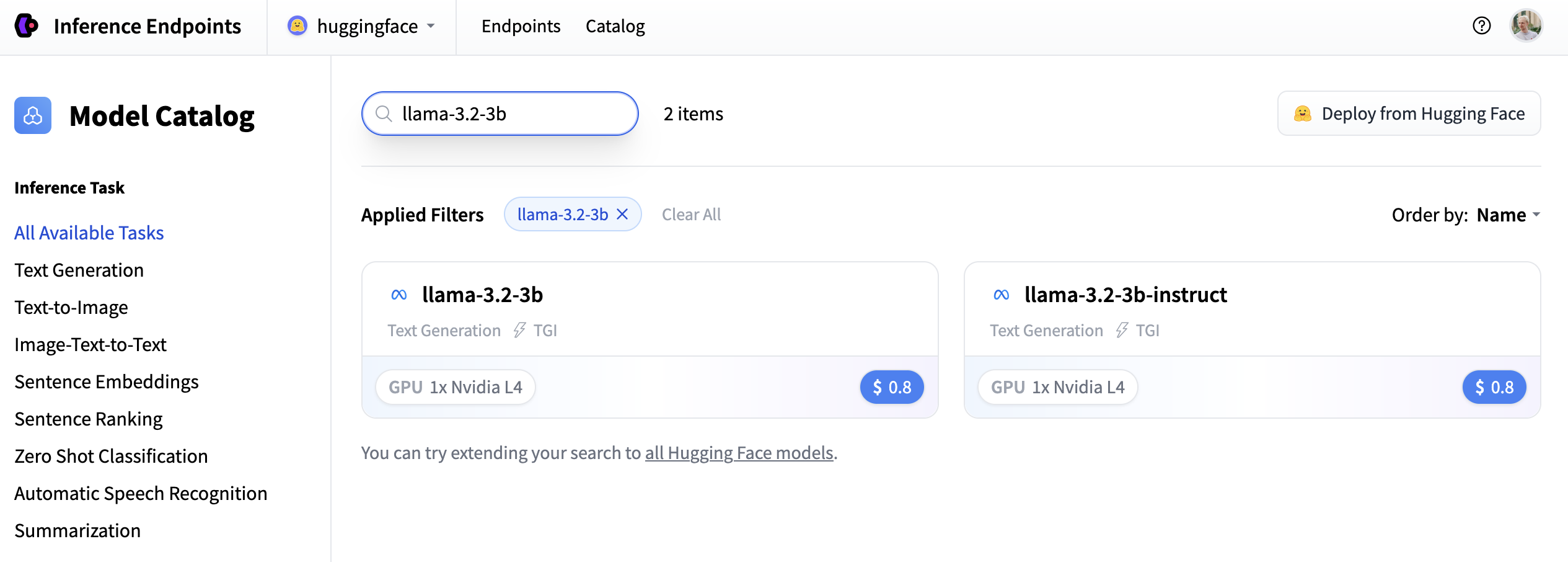
In this example let’s deploy the meta-llama/Llama-3.2-3B-Instruct model. You can find
it by searching for llama-3.2-3b in the search field and deploy it by clicking the card.
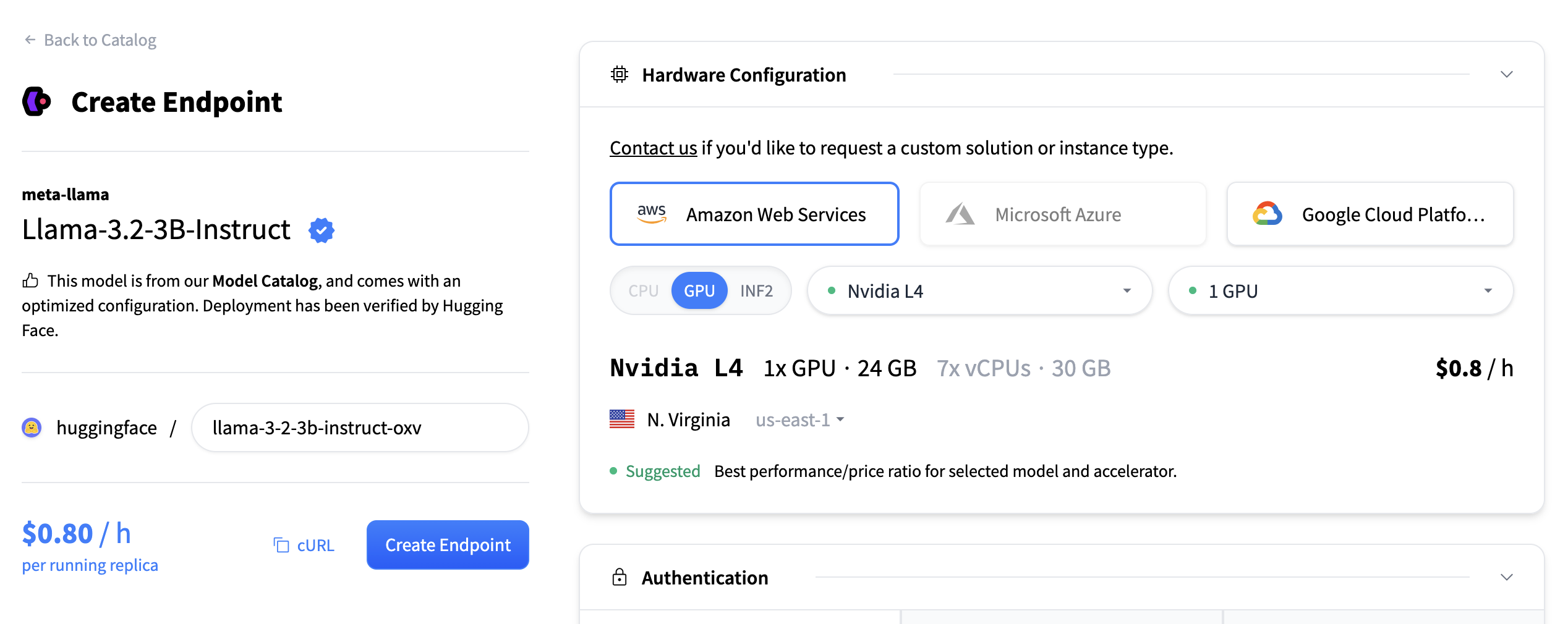
Next we’ll choose which hardware and deployment settings we’ll go for. Since this is a catalog model, all of the pre-selected options are very good defaults. So in this case we don’t need to change anything. In case you want a deeper dive on what the different settings mean you can check out the configuration guide.
For this model the Nvidia L4 is the recommended choice. It will be perfect for our testing. Performant but still reasonably priced. Also note that by default the endpoint will scale down to zero, meaning it will become idle after 1h of inactivity.
Now all you need to do is click click “Create Endpoint” 🚀
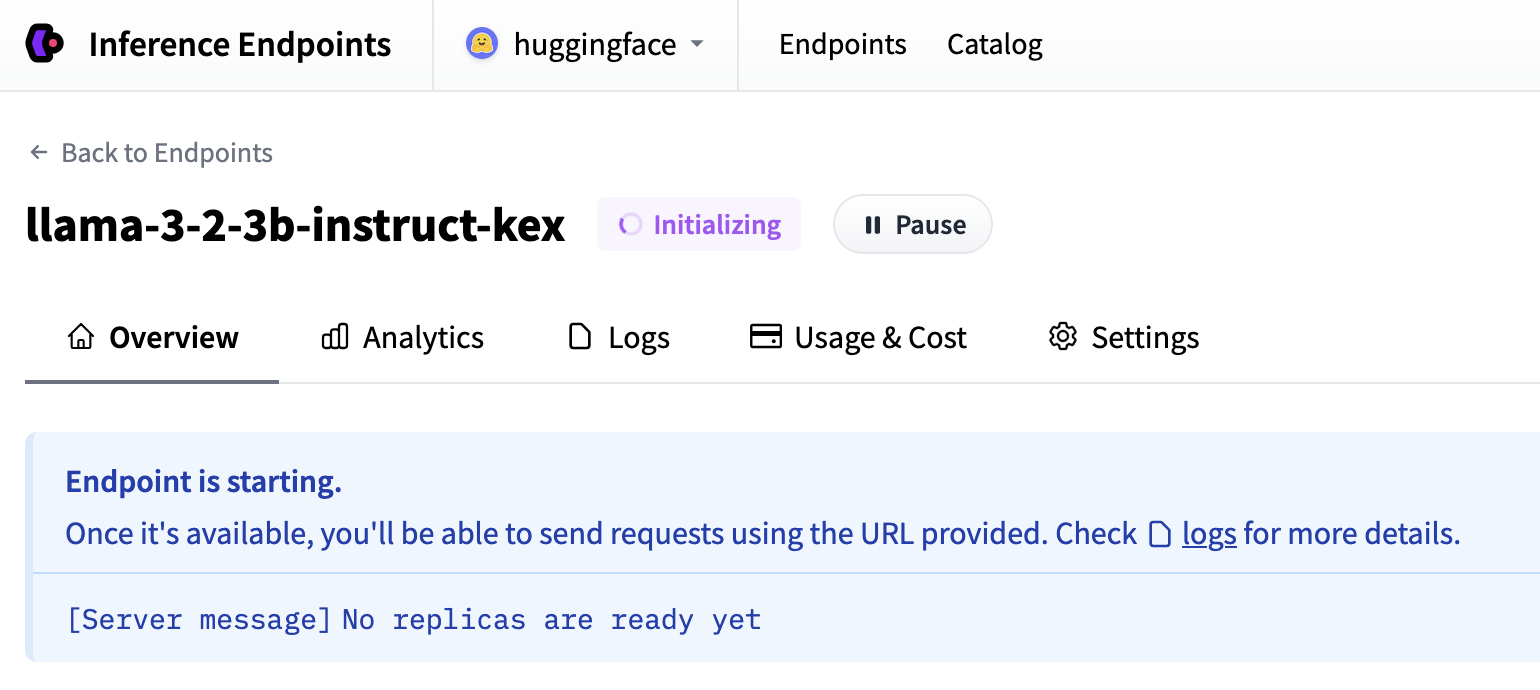
Now our Inference Endpoint is initializing, which usually takes about 3-5 minutes. If you want to can allow browser notifications which will give you a ping once the endpoint reaches a running state.
Test your Inference Endpoint
And then once everything is up and running you’ll be able to see the Endpoint URL on the Overview tab — this is what you use to call your endpoint and send requests to it.
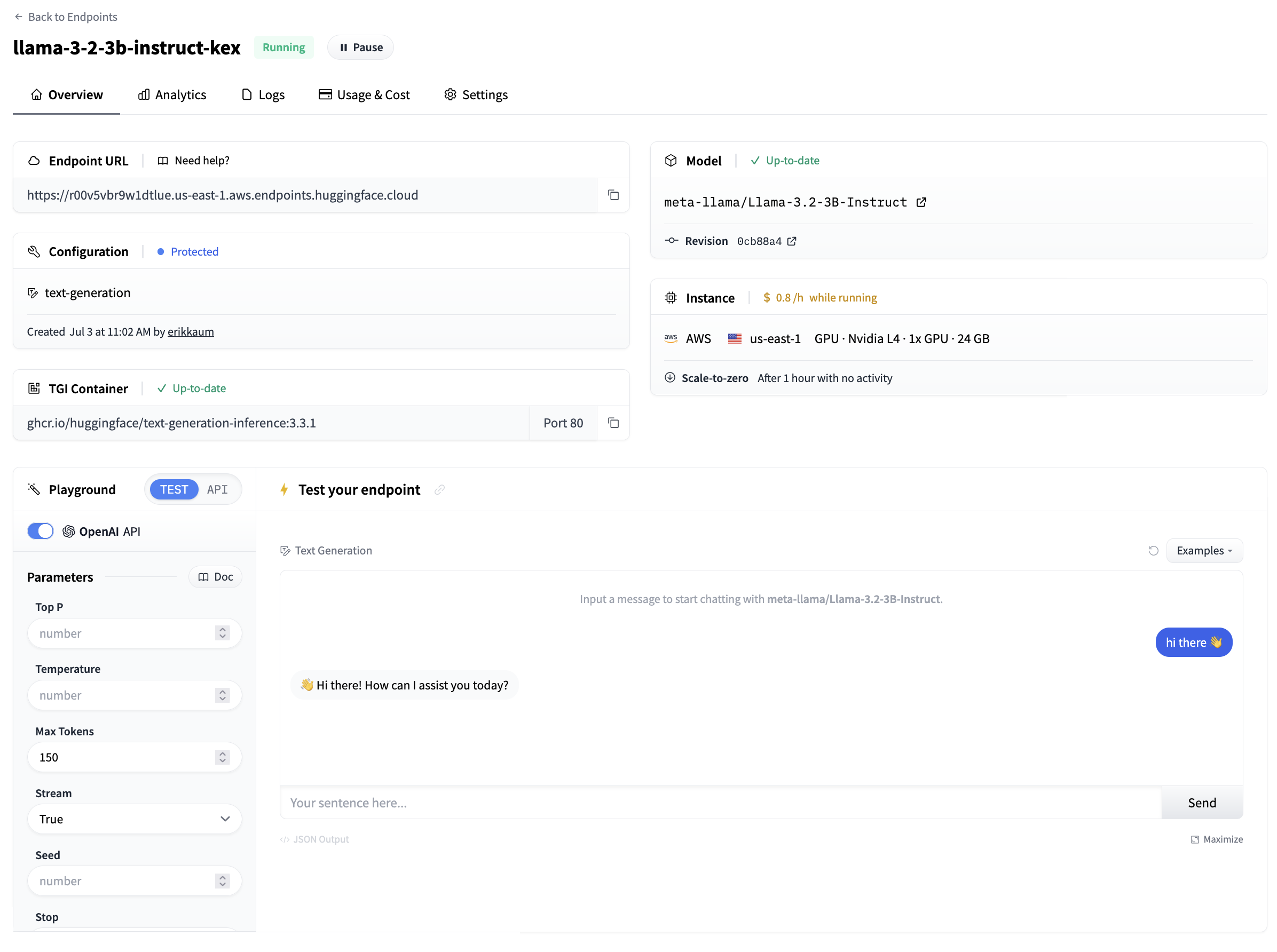
Head over to the Playground tab for a quick visual way of testing that the model works. From the “API” section of the playground you can also copy + paste a code snippet for calling the model. By clicking API Token you can paste in an access token to be able to call the model. By default, all Inference Endpoints are created as private which require authentication and all data is encryped in transit using TLS/SSL.
Congratulations, you just deployed a production ready AI model in Inference Endpoints 🔥
Once you’re happy with the testing you can pause the Inference Endpoint, delete it. Or if you let it be, it will scale to zero after 1 hour.
Update on GitHub